Pages

Thursday

How To Save Time Booting Your Computer

If you're like me you probably get just as frustrated when you boot up your computer because it just seems to take forever. Most of us develop a routine where we turn our computers on and then knowing it's going to take some time busy ourselves with other things.

Here's a way to put an end to all the waiting. In fact, when you press the power switch your computer can now roar to life in just seconds.

By putting your computrer into hibernation mode all the documents and applications that were opened will be exactly the same as they were when you put it into hibernation.

To set your computer up for hibernation:

- Go to Control Panel and double-click Power Options.
- Click the Hibernate tab and tick Enable Hibernation. Click OK.


- When you leave your computer, click Start and then Turn Off Computer.
- Hold down SHIFT and a new Hibernate option will appear. Click Hibernate.
- Or, press the sleep button on your keyboard.
- Your computer will save its state to memory and shut down. When you turn on your computer, your files and documents will open on your desktop exactly as you left them.

Tuesday

Cellphone Tips and Tricks

NOKIA 5110/5120/5130/5190 3110/3330 6110/6120/6130/6150/6190
Ericson T65/T20/T28/R310/
Siemens C25
Dancall
Alcatel
Samsung SGH600/2100DB
Philips
Panasonic gd90/gd93/GD70
ACER V750
Genie DB NEC db2000 Trium Geo/Geo @ - Astral - Cosmo -Aria
Telit GM 810
Sagem MC959/940
Sagem MC920
Sony CMD Z5/J5
Motorola V3688


Nokia


NOKIA 5110/5120/5130/5190

IMEI number: * # 0 6 #
Software version: * # 0 0 0 0 #
Simlock info: * # 9 2 7 0 2 6 8 9 #
Enhanced Full Rate: * 3 3 7 0 # [ # 3 3 7 0 # off]
Half Rate: * 4 7 2 0 #
Provider lock status: #pw+1234567890+1
Network lock status #pw+1234567890+2
Provider lock status: #pw+1234567890+3
SimCard lock status: #pw+1234567890+4


NOKIA 6110/6120/6130/6150/6190

IMEI number: * # 0 6 #
Software version: * # 0 0 0 0 #
Simlock info: * # 9 2 7 0 2 6 8 9 #
Enhanced Full Rate: * 3 3 7 0 # [ # 3 3 7 0 # off]
Half Rate: * 4 7 2 0 #


NOKIA 3110

IMEI number: * # 0 6 #
Software version: * # 0 0 0 0 # or * # 9 9 9 9 # or * # 3 1 1 0 #
Simlock info: * # 9 2 7 0 2 6 8 9 #


NOKIA 3330

*#06#
This will show your warranty details *#92702689#
*3370#
Basically increases the quality of calling sound, but decreases battery length.
#3370#
Deactivates the above
*#0000#
Shows your software version
*#746025625#This shows if your phone will allow sim clock stoppage
*4370#
Half Rate Codec activation. It will automatically restart
#4370#

Half Rate Codec deactivation. It will automatically restart
Restore Factory Settings
To do this simply use this code *#7780#
Manufacturer Info
Date of Manufacturing *#3283#
*3001#12345# (TDMA phones only)
This will put your phone into programming mode, and you'll be presented with the programming menu.2) Select "NAM1"
3) Select "PSID/RSID"
4) Select "P/RSID 1"
Note: Any of the P/RSIDs will work
5) Select "System Type" and set it to Private
6) Select "PSID/RSID" and set it to 1
7) Select "Connected System ID"
Note: Enter your System ID for Cantel, which is 16401 or 16423. If you don't know yours, ask your local dealer for it.
Select "Alpha Tag"
9) Enter a new tag, then press OK
10) Select "Operator Code (SOC)" and set it to 2050
11) Select "Country Code" and set it to 302 for Canada, and 310 for the US.
12) Power down the phone and power it back on again
ISDN Code

To check the ISDN number on your Nokia use this code *#92772689#
FOR NOKIA MODELS THAT WE ARE NOT REFERRING TO, TRY ONE OF THE PREVIOUS CODES


Ericsson

Ericson T65
*#05# Fake Insert puk screen Press no to exit
Ericsson T20
MENU tecnichal Info
[type] >*<<*<* Displays : 1] Info service 1] Info SW 2] Info hardware 3] SIMlock 4]setup 2] Service setup 1] Contrast 3]Service Test 1] Display 2]Leds 3]Keyboard 4] ringer 5] Vibration 6]Headset 7] Microphone 8]Clock 4] Names List MENU info [Type] >*<<>*<<*<* menu Tecnichal info SW vers. and name list >*<<>
Network and Subnetwork : NCK and NSCK
<> are the right and left menu's keys


Ericsson T18s/T10/A1018s
>*<<*<* software CXC125065 Internal product code PRG 970715 1515 Software version and SW rev. <* CLR <>
>*<<*<*> Displays texts and messages in the phone
It will be displayed " TEXT " then push YES
<> are the right and left menu's keys
!!!>
Control /Enable SIM Lock!!!


Ericsson R310

Technical Info : >*<<*<* Options : 1) service Info info Software Simlock Configuration 2) Service Test Display Led/Illumination Keyboard ringer Vibration Headset Microphone Clock 3)Text's name List Info personal : >*<<>*<<*<*> WORKS WITH EVERY ERICSSON AND IT USUALLY REVEALS A HIDDEN MENU


Siemens

Siemens C25
IMEI number: * # 0 6 #
Software version: put off sim card and enter: : * # 0 6 # and press LONG KEY
Bonus screen: in phone booke: + 1 2 0 2 2 2 4 3 1 2 1


Bosch
IMEI Number: * # 0 6 #
Dafault Language: * # 0 0 0 0 #
Net Monitor: * # 3 2 6 2 2 5 5 * 8 3 7 8 #


Alcatel
IMEI number: * # 0 6 #
Software version: * # 0 6 #
Net Monitor: 0 0 0 0 0 0 *


Samsung

Samsung SGH600/2100DB

IMEI number: * # 0 6 #
Software version: * # 9 9 9 9 # albo * # 0 8 3 7 #
Net Monitor: * # 0 3 2 4 #
Chaning LCD contrast: * # 0 5 2 3 #
Memory info: * # 0 3 7 7 # albo * # 0 2 4 6 #
Reset pamieci (SIMLOCK`a removing!!!): *2767*3855#
Reset pamieci CUSTOM: *2767*2878#
Battery state: * # 9 9 9 8 * 2 2 8 #
Alarm beeper: *#9998*289#
Vibra test: *#9998*842#


Dancall


IMEI number: * # 0 6 #
Software version: * # 9 9 9 9 #


Philips


*#3333*# Displays the blocking list.
*#7489*# Displays the security code.
*#06# Displays the IMEI number.
*#8377*# Displays the SW info.


Panasonic


Panasonic gd90 gd93

*#9999# SW - Type the code on switch on , during network seek
-Vers. SW and production code
Enable ringing and vibration contemporarily
Enable vibration with # then increase volume with "tone menu "


Panasonic gd70
*#9999# SW - Type the code on switch on , during network seek
-Vers. SW and production code
Enable ringing and vibration contemporarily
Enable vibration with # then increase volume with "tone menu "


Acer

Acer V 750

*#400# Display Adc/ Set Cal-Value -
*#402# Set LCD Contrast
*#403# Display Errors Info
*#300# Display Info Hw & Sw
*#301# Menu Test
*#302# Menu Acoustics
*#303# (Settings saved) Set English language?
*#307# Menu Engineering
*#311# Reset Phone Code - [ Also reset Security Codes ! ]
*#330# (Execute not success) [ unknown ]
*#331# (Service deactivated) [ unknown ]
*#332# (Service unavailable)[ unknown ]
*#333# (Execute not success)[ unknown ]
*#351# (Service unavailable) [ unknown ]
*#360# (Invalid input)[ unknown ]
*#361# (Invalid input) [ unknown ]
*#362# (Invalid input) [ unknown ]
*#363# (Invalid input) [ unknown ]


Genie

Genie DB

*#06# IMEI.
*#2254*# Near Cell Mode.

For every received BTS will be displayed :
Current channel and 2 channel levels

*#06# IMEI
*#2558# time of network connection ( D/H/M )
*#2562# Fores reconnection to network
!!!*#7489# Dispalys and modify phones' security code!!!
!!!*#3377# SIM lock information !!!
*#7378# SIM card Informations : supported phase name and tipe
*#7693# Enable/disable "Sleep Mode"
*#8463# State of "Sleep Mode"
*#2255# Debug Call Mode enable/disable
*#3333*# Displays the blocking list.
*#7489*# Displays the security code
*#06# Displays the IMEI number
*#8377*# Displays the SW info.


NEC


NEC db2000

*#2820# software vers.
IMEI *#06#
Reset *73738# (send?)
SP Lock info:
* # 3210 # (send?)
Network barring info : *#8140# (send?)
( it could harm your phone )
SIM lock it could harm your phone )
*#4960 # (send?) -Inquiry * 4960 * password * password # (send?) lock
#4960* password # (send?) unlock
[password] [8 digits]
Net Lock
*#7320# (send?) -Inquiry * 7320 * password * password # (send?) lock
#7320* password # (send?) unlock
[password] [ 8 digits]
Net Lock 2:
*#2220# (invio) - Inquiry * 2220 * password * password # (send?) lock
#2220* password # (invio?)unlock
[password] [8 digits]
Unlock subnetwork
*#1110# (send?) - inquiry * 1110 * password * password # (send?) lock
#1110* password # (send?) unlock
[password] [nĂ‚° 8 cifre]
( it could harm your phone )


Trium


Trium Geo/Geo @ - Astral - Cosmo -Aria

Enter the menu and type *
A new menu will be displayed :
Application : SW version and battery's voltage


Trium Galaxy
Push * and type 5806: Production date and SW version


Telit


Telit GM 810
MONITOR - technical menu - : type ++++ and push OK.
Adiacent cells list : # and *
Now if you push OK the phone displays battery ' s voltage and temperature


Sagem


Sagem MC959/940

Select commands' menu and push *
Displays a new menu' :
Appli : software vers. and battery's voltage
Eprom
Sim Lock
Test LCD: display test , green/red and vibration


Sagem MC920

Select commands' menu and push *
Displays 5 new menus :

1 APPLI
VERSION ( SW)
BATTERY (voltage )
2 PROM (IMEI)
3!!! SIM LOCK (10 digits code requested ) !!!
4- NETWORK (returns : OPTION NOT AVAILABLE)
5- TEST LCD
SYMBOL 1 (LCD)
SYMBOL 2 (test2 LCD)
BLACK (all icons and carachters displayed )
FOR PHOTO (welcome message and time )
VIBRATOR (vibration test )


Sony


Sony CMD Z5/J5

Vers. SW :
Without SIM , switch on phone and type l *#7353273#


Eprom


!!! Sim Lock [10 digits code ] ( it could harm your phone )
NETWORK : OPTION NOT AVAILABLE
Test LCD: display test of the green/red leds and vibration
Push * and type 4329 :enables/disables network monitor 1 (the same of MT35)
Push * and type 621342 :enables/disables network monitor 2
Push * and type 5807 : Serial Number Software Vers.
Push * and type 936505: IMEI -- Software Vers.
TPush * and type 547 : Test serial Data Cable DISPLAYS :"Testmode"
Push * and type 362628: ISMI BLOCK (UNKNOWN)
Push * and type 476989: NS BLOCK (UNKNOWN)
Push * and type 482896:CP BLOCK (UNKNOWN)
Push * and type 787090: ? BLOCK (UNKNOWN)
Push * and type 787292 : block current network
!!! Push * and type 967678: SP LOCK!!!
Push * and type 850696:Warm Start ( ENABLE/DISABLE)
Push * and type 3926 : Swicth off phone
Push * and type 5806: Production date and SW version


Motorola


Motorola V3688

IMEI *#06#
Enhanced Full Rate Codec EFR
Enable EFR : [][][] 119 [] 1 [] OK.
disable EFR : [][][] 119 [] 0 [] OK

Sunday

Make your own Home Theater Projector

Projection TV Instructions

These plans are very simple! Results may vary by types of materials you use. Works on TVs or monitors.


Materials

These are the things you will need to make your 100" projection TV!

Magnifying glass- Please note if it has a bifocal lens it will not work!!

Sturdy cardboard (or fiberboard).

Duct tape

Black paint or paper

3 pencils

Small mirror (about 3"x3")(optional, you don't really need this).

Four small washers that fit snug around the pencils.


Step1> Measure your screen (vertical and horizontal).


Step2> Cut the side pieces (A and B) for your projector. (Using your measurements from step 1.) Again use 35" for length. This allows the room to adjust the focus. Be sure to cut as straight as possible!


Step 3> Cut the top and bottom pieces (C and D.) (Using your measurements from step 1). Again use 35" for length.


Step 4> Cut out your slider (E). This piece will be the one that slides in and out of your projector! This allows for the focussing. Use your screen measurement from step 2 & 3. Then, find the center, mark it with your pencil!


Step 5> Remove the glass lens form your magnifying glass. Set it exactly on the cent or your slider. Trace around it, and cut our the circle very carefully. Lens must fit snugly in the hole!


Step 6> Now you have all your pieces cut. Now you either paint all pieces black, or cover with black construction paper. If painting, use more than one coat!


Step 7> Now start to assemble your projector. Place pieces A,B,C, & D together and tape them together using your duct tape. Tape both sides so you don't get any light showing through.


Step 8> Now connect the two side together using duct tape. Do this carefully, and now you should have a rectangular box!


Step >9 Insert your glass lens into the hole you cut inb the slider. THIS MUST FIT TIGHTLY. It must be flush with slider. This is a little tricky, but is not impossible!


Step >10 Take to unsharpened pencils and poke them through your slider (E) about one inch from the sides, not the top and bottom. Then put a washer on each end if the pencils. Use some tape if necessary to ensure pencils do not slide in and out! Only push a LITTLE of the pencil through, just enough to secure them. The pencils allow you to push pull the slider in and out to adjust your focus. If pencils interfere with your picture, pull them out after you have focussed your projector and put tape over the holes!


Step 11> Place your slider about halfway in the box. Your slider must fit squarely inside the box!


Step 12> Turn your TV or monitor upside down and carefully attach your projector. Use tape or any other way you desire! Should fit tightly and no light should shine through the box.


Step 13> Turn your TV or monitor on and adjust your slider to focus your picture. This may take a while. The further away from the wall, the larger your picture will be! The darker the room, the clearer your picture will be.


Step 14> If your image is reversed, place a mirror at a 45 degree angle in front of the lens. You may have to turn the screen in its back. Same principle used in school overhead projectors.


Step 15> After the projector is setup and focussed, cut the remaining front pieces away. This allows for better viewing.

Saturday

Mouse Wheel Tricks

If you have a mouse with a scroll wheel on it, you can do some cool tricks.......

1.Shift & Spin

Ever wonder what happens when you hold down the Shift key on a web page and spin the wheel on your wheel mouse? Explorer goes either back or forward, depending on which direction you spin.

Give it a try. Open up Internet Explorer(or any other browser) and follow a few links. Then, hold down your SHIFT key and spin that wheel.

2.CTRL & Spin

If you are in a web browser (Explorer or Netscape or Firefox) , hold down your Ctrl key and spin the wheel. It makes the text larger or smaller depending on which way you spin. For Opera users, it magnifies both the images and the text

Friday

Increase your hardisk speed

To speed up your hard disk speed we need to configure a special buffer in the computer's memory in order to enable it to better deal with interrupts made from the disk.

This tip is only recommended if you have 256MB RAM or higher.

Follow these steps:

Run SYSEDIT.EXE from the Run command.

Expand the system.ini file ********

Scroll down almost to the end of the file till you find a line called [386enh].


Press Enter to make one blank line, and in that line type

Irq14=4096

Note: This line IS CASE SENSITIVE!!!

Click on the File menu, then choose Save.

Close SYSEDIT and reboot your computer.

Done. Speed improvement will be noticed after the computer reboots.

Update: The most speed improvement is visible with IDE drives, however there are reports that this tweak also does good for SCSI disks. In any case, it won't harm your system.

Stop the system automatically rebooting after Windows Updates

Open your registry and find or create the key below.

Create a new DWORD value, or modify the existing value, called "NoAutoRebootWithLoggedOnUsers" and set it according to the value data below.

Exit your registry; you may need to restart or log out of Windows for the change to take effect.
Registry Editor Example
|NameTypeData|
|(Default)REG_SZ(value not set)|
|NoAutoRebootWithLoggedOnUsersREG_DWORD0x00000001 (1)|
-
|HKEY_LOCAL_MACHINE\SOFTWARE\Policies\Microsoft\Windows\Windo...|

Registry Settings
System Key: [HKEY_LOCAL_MACHINE\SOFTWARE\Policies\Microsoft\Windows\WindowsUpdate\AU]
Value Name: NoAutoRebootWithLoggedOnUsers
Data Type: REG_DWORD (DWORD Value)
Value Data: (0 = no effect, 1 = do not automatically reboot)

Thursday

Enable CD AutoPlay for Pro

Edit your Registry as...
Windows Registry Editor Version 5.00  [HKEY_LOCAL_MACHINE\SYSTEM\CurrentControlSet\Services\Cdrom] "AutoRun"=dword:0000001  [HKEY_LOCAL_MACHINE\SOFTWARE\Microsoft\Windows NT\CurrentVersion\Winlogon] "allocatecdroms"="0"  [HKEY_CURRENT_USER\Software\Microsoft\Windows\CurrentVersion\Policies\Explorer] "NoDriveTypeAutoRun"=dword:00000091  [HKEY_CURRENT_USER\Software\Microsoft\Windows\CurrentVersion\Policies\Explorer] "NoSaveSettings"=dword:00000000

Wednesday

Repairs the Icon View of your XP

Follow These steps....
Windows Registry Editor Version 5.00  [HKEY_CURRENT_USER\Control Panel\desktop\WindowMetrics] "Shell Icon BPP"="16" "Shell Icon Size"="32"  [HKEY_CURRENT_USER\Software\Microsoft\Windows\CurrentVersion\Policies\Explorer] "NoSaveSettings"=dword:00000000

Sunday

On Resume, Password Protect vs on Resume, Display Welcome Screen Setting in Windows XP

When you open the Display Settings Control Panel applet and click the Screensaver tab, one of the following options are shown:

  • On resume, display Welcome screen
  • On resume, password protect

The second option is seen in systems which are connected to domain (which disables the Welcome screen.) If you enable this option, you’ll see the "Unlock Computer" classic logon prompt when resuming from screensaver mode. Whereas the former displays the Welcome screen when resuming from screensaver mode.

What if the "On resume, password protect" option is shown in a standalone system where the Welcome screen is enabled? What causes the "On resume, password protect" option to be shown in standalone systems and systems in a Workgroup?

This was asked by many Windows XP users over these years in various forums where I participate, but no entire explanation for this observation has been found anywhere. Hence this article was written.

Saturday

How to hide the "Delete" command from Recycle Bin context menu in Windows Vista

The Delete command from the Recycle Bin context menu in Windows Vista cannot be removed, but can be hidden by using a tweak. To hide the Delete command and replace it with a Search... command, use these steps:

  • Download the file Vista_recyclebin_hidedelete.reg (from the Attachments section below)
  • Save the file to your Desktop
  • Right-click on the file and choose Merge
  • If you are prompted for an administrator password or confirmation, type the password or provide confirmation
  • Click Yes to continue
  • After applying the REG file, the Recycle bin context menu will appear as in Fig 1below:

How to undo the above tweak?

To undo the above tweak, and to show the Delete option (default setting), download and apply the Vista_recyclebin_showdelete.reg file. After applying the undo REG file, the Delete option should be restored, as in the figure below.


Thursday

PreviewConfig Tool Registers File Types for the Preview Pane in Windows Vista

Windows Vista introduces the Preview pane in Explorer, which shows the contents of the currently chosen file. You can also play multimedia files from the Preview pane, without opening Windows Media Player. This article explains how to use the PreviewConfig utility to register a custom file type for the Preview pane in Windows Vista Explorer.

Registering file types for the Preview pane

If you have a custom file type and wish to register a plain text or a multimedia Preview handler for the custom file type, you can do so using this utility.


Usage

Download and run PreviewHandler utility (requires administrative privileges to run). Select the file type from the listing, and choose the type of Preview you want for this file type (Media / Plain-text / None), and click Apply.

Additional details are available in the Readme.txt file.

Adding new file types

If a file type is not displayed in the listing, you may manually type the file extension (example, .cpp) into the text box provided, and choose the Preview type for this file extension.

Example

You may use this utility to register text previews for plain-text file types such as:

.REG | .CSS | .BAT | .CMD | .INF | .CS | .VB | .CPP | .SQL

Preview Handler information

When you select a file type, the information of the Preview handler registered for the file type will be displayed in the text box. You can copy the contents to Clipboard by double-clicking the text box.

How to enable the Preview pane in Windows Vista

You can enable the preview pane by selecting Organize | Layout | Preview Panefrom the folder’s menu.

Microsoft Security Essentials (MSE) Update Utility

MSE Update Utility is a simple app that updates Microsoft Security Essentials when Windows Update is disabled. Windows Update service is responsible for frequently updating MSE. But once it is disabled via Group Policy Editor, MSE won’t update anymore.

You can download the MSE Update Utility from AddictiveTips.com.

Wednesday

How to hide drive-letters from the Send To menu in Windows Vista

Hide removable drives from Send To

By enabling the NoDrivesInSendToMenu policy, you can hide drive-letters from the Send To menu in Windows Vista without actually hiding the drives in Windows Explorer environment. As indicated in this article, NoDrivesInSendToMenu is not applicable for Windows XP systems.

NOTE: To automate the following, you may use the nodrivesinsendto.reg file available for download from the Attachments section below. Download and save the file to Desktop, right-click on the file and choose Merge. There is an undo file provided also.

Manual registry edit

  • Click Start, type regedit.exe and press ENTER
  • Navigate to the following location:

HKEY_CURRENT_USER \ Software \ Microsoft \ Windows \ CurrentVersion \ Policies \ Explorer

If the above branch does not exist by default, you'll need to create it.

  • Create a new DWORD (32-bit) value named NoDrivesInSendToMenu
  • Double-click NoDrivesInSendToMenu and set its value data to 1
  • Exit Registry Editor.

Screenshots


Fig 1: Drive-letters displayed in the Send To menu

Fig 2: Drive-letters hidden in the Send To menu

WordPress Automatic Upgrade Error “Could Not Create Temporary File”

This is probably the first time I’m trying to upgrade WordPress using the automatic upgrade option available in the WordPress Admin Dashboard. And doing so showed this error message:

Downloading update from http://wordpress.org/wordpress-2.8.6.zip.
Download failed.: Could not create Temporary file
Installation Failed


Searching the Web lead me to the following thread at WordPress Forums:

WordPress › Support » Download failed.: Could not create Temporary file

What did actually work was setting the permissions (CHMOD) for wp-content folder to 777, using the FTP client (FileZilla) I use. Once WordPress was upgraded successfully, I changed the permissions back to 755.


How to Access the Hidden Themes in Windows 7

Windows 7 includes additional themes set which are kept hidden from the themes dialog. The hidden international themes are stored in a super-hidden folder. Here is how to access the hidden wallpapers & themes set.

Open Windows Explorer and paste the following address:

%WinDir%\Globalization\MCT


Note that the folder MCT is hidden (system attributes) by default.

Under the MCT folder, the following folders (MCT-AU, MCT-CA, MCT-GB, MCT-US, MCT-ZA) exist:


These folders include themes for Australia, Canada, UK, US and South Africa. Under each folder there will be four folders, including a Theme folder. Open the Themefolder and double-click the .theme file to apply it.

The Globalization theme gets added to the Windows Themes list in the Personalizeapplet.

Office 2007 File Types DOCX, PPTX, XLSX Downloading as ZIP

When you try downloading one of the Office 2007 file types such as .DOCX, .PPTX, .XLSX, the file may download as a .Zip (Compressed Folder). This happens if the Office 2007 file format MIME types are not registered in the Web server you’re downloading the file from.
There is nothing much the user can do, apart from saving / renaming the file with the correct extension and then opening it using Office 2007.
If you had already downloaded the file (as .zip), simply rename (change) the extension accordingly. To do that, you’ll have to clear the Hide extensions for known file types check box in Folder Options.

How to Enable or Disable Thumbnail Previews Quickly Using Right-Click Menu in Windows Vista and Windows 7

If you had disabled thumbnail previews in Windows Explorer for performance, but want to have a means of enabling or disabling thumbnail previews in a jiffy, here is a solution for you. To enable or disable thumbnail previews in Windows Vista and Windows 7, you normally click on the Organize button in the folder view, choose Folder and Search Options, select the View tab and then select or deselect the Always show icons, never thumbnails.

Editor’s note: Of course, one can change the folder view options to Tiles or Details, and apply the setting to other folders. This article is for users who prefer the "icons" view, but want to enable or disable thumbnails quickly without getting into Folder Options.

Here is a REG file and a VBScript that adds a Enable/Disable Thumbnails option to the right-click menu. This script works in Windows Vista and Windows 7.

1. Download togglethumbs.zip and save it to the Desktop.

2. Unzip the archive and extract the contents to a folder.

3. Move the file togglethumbs.vbs to the C:\Windows directory.

4. Double-click togglethumbs.reg to merge the contents to the registry.

The Enable/Disable Thumbnails option is now added to the context menu, which will be seen when you right-click on the Desktop and when right-clicking on an empty area in a folder.

Tuesday

Get ip address of anyone you have a connection with or that is trying to Connect to you

Now how to look at this can be confusing unless you know what your looking for. If you have a instant message program such as "aim" and you direct connect to someone you have a "established connection" with them. So using this cmd command you can view their ip.

Usually the port number is "4443" and i noticed sometimes it doesn't work so i am guessing it is because that the person has a firewall. So here is the script.

open notepad and enter the following:

@echo.
@color 09
@netstat -n
@echo.
@pause


then save as "GetIp.cmd" and when opened you will view all established connections.

Renew IP address

Often using a LAN inside a home, users will encounter one or more PC's that refust to renew the IP address and bring the network back to a fully usable state. However this took care of that problem for us I hope it will for other XP home and PRO users.


  • Releasing and Renewing an IP address on Windows NT/2000/XP
  1. Click the Start menu in the lower left hand part of the screen.
  2. Click Run.
  3. In the space provided type "ipconfig /release" and click OK. Note that there is a space between ipconfig and the /release.
  4. To renew the IP address from the DOS prompt, type "ipconfig /renew". Note that there is a space between ipconfig and the /renew.
  • Releasing and Renewing an IP address on Windows XP
  1. Click the Start menu in the lower left hand part of the screen.
  2. Click Run.
  3. In the space provided type "ipconfig /release" and click OK. Note that there is a space between ipconfig and the /release.
  4. Type "ipconfig /renew". Note that there is a space between ipconfig and the /renew.

Turn Off Error Notification of Script Error

Only the webmaster has to know about every single script error. To turn off the error messages that pop-up, do this:

  1. Go to Tools, Internet Options. Click Advanced on the far right.
  2. In the browsing set, you should see one that says "Display Notification of Every Script Error". Uncheck it if its checked.
  3. Also, click "Disable Script Debugging" to stop that, also.

Speed up your web browsing

Iv'e personally found a dramatic increase in web browsing after clearing the Windows XP DNS cache.

To clear it type the following in a command prompt: ipconfig /flushdns

Keep Dial Up Connection after Logging off

You may have noticed that you loose your dial-up connection, after you log off your computer...

simply add this string to your registry, and your computer will keep your connection after you log off, and switch user until you disconnect it

Standard Warning: You really should back up your system before making any changes to your registry

1. Open Registry Editor

2. Go to HKEY_LOCAL_MACHINE\Software\Microsoft\Windows
NT\CurrentVersion\Winlogon.

3. Click Add String Value within the Edit menu.

4. Type KeepRasConnections in the dialog box, and select REG_SZ as the
Data Type.

5. Click OK.

6. In the next dialog box, type 1 and click OK.

7. Close the Registry Editor.

Faster and more powerful Internet searching then ever before

This tweak will have you searching the Internet faster and more powerfully then you ever have before.

1. Get TweakUI Powertoy for WindowsXP

2. Start -> Programs -> Powertoys for Windows XP -> TweakUI for Windows XP

3. Click the '+' next to 'Internet Explorer'

4. Hightlight 'Search'

5. In the right plane click on the 'Create' button.

6. For the Prefix, type in 'Google' or if you're REALLY lazy (like me) then just 'g'

7. for the URL, enter: http://www.google.com/search?hl=en&q=%s&num=100

The 'hl' is language, the 'q' is the query, and the 'num' is the number of results per page. To search for multiple keywords at a time, use the format 'google monkey+cars' or just 'g monkey+cars' depending how you chose to set it up.

If you use another search engine, then you must have never tried Google.

Here are some reasons to help sway you: http://www.google.com/technology/whyuse.html

It has no graphics to load, no popups, no graphical ads, and codes your search terms in bold to prove the pages it lists have all you wanted.

And if that didn't work, try installing a BSD or *nix type OS, and finding solutions to cryptic error messages using any other search engine.

Sooner or later you'll realize Google is tops. Just give it a month's trial and see if you ever leave it ;)

On request for advanced users only. If you don't want to use TweakUi, use this registry file or make the according changes manually.

;--begin copy below-------------------------------------------------
Windows Registry Editor Version 5.00

[HKEY_CURRENT_USER\Software\Microsoft\Internet Explorer\SearchUrl\g]
@="http://www.google.com/search?hl=en&q=%s&num=100"
" "="+"
"#"="%23"
"&"="%26"
"?"="%3F"
"+"="%2B"
"="="%3D"

;--end copy---------------------------------------------------------

Copy and paste into notepad, save as "search.reg", right click - merge.

Disable IE's Macromedia Flash plug-in

The Flash player is necessary for many of those pop-up ads and graphics on the internet, particularly on many of Yahoo!'s webpages. To prevent these annoyances from appearing, do the following:

1. Ensure Internet Explorer is closed.

2. Determine your path to the flash plug-in (the plug-in will be a file whose name contains the word 'flash', and the extension .ocx) For most installations, it will be C:\Windows\system32\Macromed\Flash\swflash.ocx.

2. Unregister the plug-in by typing the following at the Start|Run prompt:

regsvr32 c:\Windows\system32\Macromed\Flash\swflash.ocx /u


When you restart IE, most (if not all) of those pop-ups should cease to bother you.

Can't connect to computers in your network?

This may not solve everyone's problem with networking, but this is one way to fix a problem if you can't connect to users' computer.


1. Click start button

2. Click "My Network Places"

3. Right-click and click on "Properties"

4. Right-click on "Local Area Connection" and click on "Properties"

5. click on the "Authentication" tab

6. Uncheck "Enable network access control using IEEE 802.1X"

7. Click "OK"

Hopefully that should fix the problem. If it didn't then you have a different problem. Enjoy!

Assigning a Static IP Address

To assign a Static IP Address to your network connection follow these steps:

1. Open Network Connections

2. Right click the connection you wish to assign a Static Address to and choose Properties.

3. In the Properties box that comes up select "Internet Protocol TCP/IP" and click the Properties button beneath.

4. In Internet Protocol TCP/IP Properties place a dot in "Use the following IP Address".

5. Enter the IP address you wish to use and OK the change. Click OK on Local Area Connection Properties.

6. Reboot

Add a Website link to Start menu

To Install : Copy the code below to notepad and save it as link.reg then just right click on it and choose "merge".


Windows Registry Editor Version 5.00

[HKEY_CLASSES_ROOT\CLSID\{2559a1f6-21d7-11d4-bdaf-00c04f60b9f0}]
@="TweakXP.com"

[HKEY_CLASSES_ROOT\CLSID\{2559a1f6-21d7-11d4-bdaf-00c04f60b9f0}\DefaultIcon]
@="%SystemRoot%\\system32\\shell32.dll,-47"

[HKEY_CLASSES_ROOT\CLSID\{2559a1f6-21d7-11d4-bdaf-00c04f60b9f0}\Instance\InitPropertyBag]
"CLSID"="{13709620-C279-11CE-A49E-444553540000}"
"method"="ShellExecute"
"Command"="TweakXP.com"
"Param1"="http://www.TweakXP.com"


To uninstall : Copy the code below to notepad and save as rem.reg and right click and choose merge.


Windows Registry Editor Version 5.00

[HKEY_CLASSES_ROOT\CLSID\{2559a1f6-21d7-11d4-bdaf-00c04f60b9f0}]
@=""

[HKEY_CLASSES_ROOT\CLSID\{2559a1f6-21d7-11d4-bdaf-00c04f60b9f0}\DefaultIcon]
@=""

[HKEY_CLASSES_ROOT\CLSID\{2559a1f6-21d7-11d4-bdaf-00c04f60b9f0}\Instance\InitPropertyBag]
"CLSID"="{13709620-C279-11CE-A49E-444553540000}"
"method"="ShellExecute"
"command"=""
"Param1"=""

Activating Passive FTP Mode

If you have problems connectiong to FTP servers using Internet Explorer when your computer is behind a firewall, you need to enable passive mode so you can connect a different way.

1. In IE6 XP open the Tools tab -> go to Internet Options -> Advanced tab -> scroll down till you find "Use Passive FTP (for firewall and DSL modem compatibility)" -> TICK this setting -> hit Apply

This should resolve all problems with accessing FTP servers.

A Faster Way To Shut Down And Log Off Your Windows XP

If you’re experiencing slow shutdowns and log offs on your Windows XP, this trick will help you.

Instead of accessing the shutdown menu via Start->Turn Off Computer, open the Task Manager by pressing Ctrl+Alt+Delete.

Press “Shut Down” at the top of the Task Manager and choose what you want your Windows XP to do:
shutdown
  • Stand By
  • Hibernate
  • Turn Off
  • Restart
  • Log off
  • Switch User
The task will be performed in a matter of seconds.

How To Properly Disable IPv6 in VISTA

click on the Start Button and type in regedit and hit Enter.

Then, navigate through HKEY_LOCAL_MACHINE, SYSTEM, CurrentControlSet, services, TCPIP6 and Parameters. Right click on Parameters and select New and then DWORD (32-bit) Value. Name the new value DisabledComponents and hit Enter. Now right click on the new DisabledComponents value you just created and select Modify. Set the value of DisabledComponents to FF and click OK.

After a reboot IPv6 will be disabled on all interfaces.

Wednesday

How to fix incompatibility problems between Internet Explorer 8 and the Google Toolbar

Option 1: Update to the latest Google Toolbar
To update to the latest Google Toolbar, follow these steps:
  1. Visit the Google Toolbar site to download and install the latest version of the Google Toolbar. This will resolve this issue. Click the following link to visit the Google Toolbar Web site:Download the Google Toolbar now
  2. Close all Internet Explorer windows after you install the update.

Option 2: Disable the Google Toolbar
To disable the Google Toolbar, follow these steps:
  1. Close all Internet Explorer windows.
  2. Open a new Internet Explorer window. You will see a dialog informing you that the ‘Google Toolbar' add-on can cause Internet Explorer to crash or to stop responding.
  3. Click Always open Internet Explorer without this add-on.
After you do this, Internet Explorer 8 will not load the Google Toolbar when it starts.

How to uninstall Internet Explorer 7

When you uninstall Windows Internet Explorer 7, Internet Explorer 6 is automatically restored on your computer. This article describes how to confirm that Windows Internet Explorer 6 is restored properly.

Step 1: Uninstall Internet Explorer 7
Click Start, and then click Run.
In the Open box, type appwiz.cpl, and then click OK. It may take several seconds for your computer to compile a list of programs.
Scroll down through the list and click Windows Internet Explorer 7, and then click Remove.
Back to the top

Step 2: Verify that Internet Explorer 6 is restored
To verify that Internet Explorer 6 is restored, follow these steps:
Click Start, and then click Run.
In the Open box, type iexplore. Windows Internet Explorer opens.
On the Help menu, click About Internet Explorer. The About Internet Explorer window opens.
If the Version number begins with 6, you have successfully uninstalled Internet Explorer 7 and restored Internet Explorer 6.

Reset Internet Explorer 7 settings

Resetting Internet Explorer's settings is not reversible. After a reset, all previous settings are lost and cannot be recovered. Rather than resetting everything, you might want to reset specific settings or delete your webpage history.


1. Close any Internet Explorer or Windows Explorer windows that are currently open.
2. Open Internet Explorer by clicking the Start button , and then clicking Internet Explorer.
3. Click the Tools button, and then click Internet Options.
4. Click the Advanced tab, and then click Reset.
5. In the Reset Internet Explorer Settings dialog box, click Reset.
6. When Internet Explorer finishes applying default settings, click Close, click OK, and then click OK again.
7. Close Internet Explorer.
Your changes will take effect the next time you open Internet Explorer.

You cannot open a new Internet Explorer window or nothing occurs after you click a link

To resolve this problem in Internet Explorer, follow these steps:

  • Quit all programs that are running.
  • Click Start, and then click Run.
  • Type regsvr32 urlmon.dll, and then click OK.
  • When you receive the "DllRegisterServer in urlmon.dll succeeded" message, click OK.
If this does not resolve the problem, repeat steps 2 through 4 for each of the following files (in step 3, replace Urlmon.dll with each of the file names below):
Shdocvw.dll
Actxprxy.dll
Oleaut32.dll
Mshtml.dll
Browseui.dll
Shell32.dll
Windows XP and Windows 2000 only
Restart the computer to enable the changes to take effect.

If the problem is still not resolved, verify that the following registry values are present and correct:
  • HKLM\SOFTWARE\Classes\Interface\{00020400-0000-0000-C000-000000000046}
Name: (Default)
Value: IDispatch
  • HKLM\SOFTWARE\Classes\Interface\{00020400-0000-0000-C000-000000000046}\ProxyStubClsid
Name: (Default)
Value: {00020420-0000-0000-C000-000000000046}
  • HKLM\SOFTWARE\Classes\Interface\{00020400-0000-0000-C000-000000000046}\ProxyStubClsid32
Name: (Default)
Value: {00020420-0000-0000-C000-000000000046}


If the problem is still not resolved, reinstall Internet Explorer. If you are using the version of Internet Explorer that is included with your operating system, reinstall or repair your operating system.

Saturday

Resize screen fonts on the fly in Internet Explorer

Here's a simple useful tip that you can use in Internet Explorer. While viewing a web page, hold down CTRL and use the scroll button on your mouse to increase or decrease the size of the fonts on the page. Some websites really like using the small size 1 fonts, and if you're eyes have a hard time reading such small text, this little trick can make previously headache ridden websites much easier to read through.

Friday

Turn autocomplete off in IE

By default, Windows XP and Internet Explorer 6 will examine what you are typing in the address bar and pop up a list of similar entries you entered recently. It also stores entries you have made on web documents and forms, including usernames and passwords. While this can help speed up your web surfing experience, it can also potentially compromise your privacy if multiple people are using the same user account on your system. Fortunately, autocomplete can be easily disabled through the IE options menu.

To do this: From Internet Explorer, go to the Tools menu, then select 'options.' Choose the 'content' tab, then click the 'autocomplete' button.


Disable the various options as you see fit. You can also clear autocomplete's memory cache for web forms and passwords from this window.

Create a password reset disk

Here's an important tip… If you are using a password protected user account in Windows XP (and you really, really should be ) you might be nervous about forgetting your password. Well here's a way to put your mind at ease, at least a little bit. Windows XP allows users to create a password reset disk specific to their user account. This disk can be used at the welcome screen to reset your password in the event that you do forget it.

To create the disk: Go to start\control panel\user accounts. Select the account you are currently logged in as.

Under the 'related tasks' heading in the top left corner, click 'prevent a forgotten password' to open the forgotten password wizard. Insert a blank floppy disk and follow the instructions to create your password reset disk.

To use the password reset disk in case of emergency:

Once you have created a password reset disk for a specific user, the next time the password for that user is entered incorrectly at the welcome screen, a message will pop up asking if you have forgotten your password. At this point you can elect to use your password reset disk. Follow the instructions to reset your password.

Note: There are a couple of possible problems with the above procedure. For one, if you have used Windows XP's built in encryption feature to encrypt some of your files and folders, but have not yet updated to service pack 1, do not reset your password, as you will lose access to all the encrypted data. Once you have got service pack 1, it is safe to use the disk. Also, you cannot gain access to the reset feature if you have disabled the welcome screen on XP by using tip #31 above.

Keep your reset disk in a safe location, because anyone else can also use it to reset your password....

Hosting online games through the Windows XP firewall

If you are using the Windows XP firewall and you wish to host an online game such as Quake 3, or other applications that require users on the Internet to contact your computer directly, you will need to customize your firewall slightly to allow these specific communications through. Fortunately the XP firewall makes these changes fairly easy to do.

To customize your firewall: Go to 'start\control panel\network connections'. Right click on the network connection that has the firewall enabled and go to 'properties.' Choose the 'settings' button at the bottom. On the 'services' tab, click the 'add' button.


This window will add the application that you are using to the firewall's list of data that is allowed into your computer.

You will need to find out the port that your application uses. This information should be available from the documentation or from the software manufacturer's website.

Input a description for your convenience, then the computer name or IP address of the computer that is hosting the program, then put the port number that the program uses. Note that as long as the program is running on the computer that uses the XP firewall, the internal and external port will be the same.

Click 'ok' to apply the rule. Your firewall will now allow connections through the port you specified.

Create a link to shutdown your PC

To create a useful link desktop link to shutdown or restart your PC, follow these directions:

Right click on an empty area of your desktop, then select 'new' and 'shortcut' to open the new shortcut wizard.

When prompted for the location of the shortcut, enter 'SHUTDOWN -s -t 01' to shutdown the system or 'SHUTDOWN -r -t 01' to restart the system.

Name the shortcut and give it an appropriate icon from the '%SystemRoot%\system32\SHELL32.dll' location.

You now have a quick shortcut to shutdown or restart your system! Perfect for getting out of the office right at 5:00PM on the dot!

Quick Edit in the Command Prompt

The Quick Edit function allows you to cut and paste text to and from the command prompt window, something which you may have become used to not being able to do.

To activate Quick Edit: Open a command prompt Window ('start\run' and type 'cmd'). Right click on thetoolbar at the top and select 'properties.' Put a checkmark in the Quick Edit mode box. When prompted, opt to apply changes to all similar windows.

Now that Quick Edit is enabled in the command prompt, you can click and drag to highlight text, then press ENTER to copy it to the clipboard. To paste text from the clipboard, simply right click on the command prompt window.

Compressing files and folders to save space

Windows XP includes a built in compression utility which can save you some valuable space on your hard disk by archiving little used files. Working similarly to compression programs such as PKZIP and WINRAR, the built in software reduces the space your files take up on the disk at the penalty of increased disk access time for the compressed files in question. There are several ways of compressing data on your system:

If you have a pre-existing folder and would like to compress everything in it, right click on the folder, select 'properties' then the 'advanced' button at the bottom. In the 'compress or encrypt attributes' section, check the 'compress contents to save disk space' option.

If you wish to create a compressed folder for a file or folder separate from the one it is in now, right click on the item you wish to compress and choose 'send to\compressed (zipped) folder.' This will create a new compressed folder in the same location as the original file or folder.

Use remote desktop to connect to your PC from anywhere

Windows XP Professional includes Microsoft's remote desktop software, which can be used to access your computer from anywhere you have Internet access. Not only can you access your system, you can actually see and manipulate the desktop environment just as if you were seated in front of the system.

Let's look at how to do this: In order to use Remote Desktop to connect to your home computer remotely, it must first be enabled. Right click on 'my computer' then select the 'remote' tab, and check the box entitled 'allow computers to connect remotely to this computer.'

Note: please ensure that all of your user accounts are using proper passwords before you enable this option, otherwise anyone with internet access and a Windows system can theoretically access and control your computer.
Using the 'select remote users' button, you can select user accounts that have access to the computer remotely. All members of the administrators group (that is, the built in 'administrator' account and any users who were added during the install process) are allowed remote access automatically.

Now you can install Remote Desktop Web Connection if you wish. This allows client computers to access the remote desktop through Internet explorer, eliminating the need to download and install the (freely available from Microsoft) 'Remote desktop client' program.

Insert the Windows XP Professional CD and select 'install additional windows components. Highlight 'internet information services (IIS)' and click 'details.' Highlight 'world wide web services' and click 'details.' Now put a check beside 'Remote desktop web connection,' hit 'ok' twice and then 'next' to install.
Now to connect to the remote desktop from any client computer with Internet Explorer 4 or better installed, simply type 'http://(IP address of your home computer)/tsweb' to bring up the web connect dialog screen.

Mount a new hard drive as a folder in your C: drive

Actually, this tip works for any partition of any NTFS formatted drive (except the partition with the Windows system files on it)… Windows XP, like 2000 before it, allows you to 'mount' drives as folders in a pre-existing logical drive. For example, if you had a computer with a 20GB disk formatted into a single partition and volume (drive c:), you could purchase a second drive, partition and format it from disk manager and then instead of giving it its own drive letter, add it to your c: drive as a directory. Any files added to that directory would of course be stored in the new HD.

This can come in extremely handy, as certain applications (databases come to mind) can grow extremely large, but may not support storing data on a (logically) separate drive.

As far as Windows is concerned, a drive mounted as a directory is just a directory, so no extra drive letters are involved. This can also cut down on storage confusion for the average user, and it's easy to do, though it can only be done with NTFS formatted partitions, and obviously the boot partition cannot be used this way, though other partitions can be added to the boot partition.

Also note that shuffling the partition around in this way has no effect on the data stored in it. You can move an NTFS partition from directory to directory, then give it back a drive letter if you choose, while maintaining complete access to the data inside. No reboot is necessary. One other note: If you have installed software on a partition you plan to mount as a directory, it is best to uninstall and reinstall it, since the move may stop the software from working correctly. Windows will warn you about this if you forget my wise words.
To mount a partition as a directory: Open disk manager, the right click on the partition you wish to mount as a directory in the graphical partition window (lower pane). Select 'change drive letter and paths…'

Remove the current option (if any), then click add.

Choose the 'mount in the following empty NTFS folder,' browse to the desired volume and add a directory for your drive. Click 'ok.' That's it.

If you wish to return things back to the way they were, simply repeat the procedure, removing the directory location and choosing a drive letter instead. The data on the drive will be unharmed.

Resize screen fonts on the fly in Internet Explorer

Here's a simple useful tip that you can use in Internet Explorer. While viewing a web page, hold down CTRL and use the scroll button on your mouse to increase or decrease the size of the fonts on the page. Some websites really like using the small size 1 fonts, and if you're eyes have a hard time reading such small text, this little trick can make previously headache ridden websites much easier to read through.

Enable clear type

Windows XP allows you to enable Microsoft's Clear Type font smoothing method. This blends the colours at the edges of type on screen, causing the letters to appear less jagged. While it is primarily intended to increase text quality for users of laptops and desktop PCs with LCD (flat panel) screens, it is worth experimenting with even if you use a traditional CRT.

Be advised that certain ClearType settings may appear rather blurry on a CRT monitor. If you use an LCD monitor on a laptop or desktop, you should definitely enable Cleartype as the increase in text quality is considerable.

To activate ClearType: Go to 'control panel\display' and select the 'appearance' tab.

Click the 'effects' button. Ensure that the 'use the following method to smooth the edges of screen fonts' box is checked and change the drop down box to 'ClearType.' Press 'OK.'

Once you have enabled cleartype, Microsoft has provided a web location where you can fine-tune your ClearType settings. Here it is the link.

18. Create a keyboard shortcut to a folder or program

Shortcuts to programs are very convenient, but only if they are easily accessible. It can be a pain to have to minimize the window you are currently working in just to locate the shortcut you are looking for.

To make things easier, XP features the ability to link shortcuts to user-defined key combinations, so you can easily activate the one you are looking for without disrupting what you are doing.

Unfortunately this only works for shortcuts that are placed directly on the desktop, not in other folders, but it's still a useful little tip.

To do it: Select the folder or program icon that you wish to use. Create a shortcut for it by right clicking on the item and selecting 'create shortcut' from the menu.

Place your newly created shortcut on the desktop by dragging or cut/pasting. Right click the shortcut and select 'properties.'

Select the 'shortcut' tab and enter the key combination you wish to use (XP will automatically edit the combination if it is not acceptable. Just entering 'e' for example, will get you an actual key combination of ctrl + alt + e). Click 'ok.'

Wednesday

Windows XP Disk Defragmentation

"Disk defragmentation describes the process of consolidating fragmented files on your computer's hard disk.
Fragmentation happens to a hard disk over time as you save, change, or delete files. The changes that you save to a file are often stored at a location on the hard disk that's different from the original file. Additional changes are saved to even more locations. Over time, both the file and the hard disk itself become fragmented, and your computer slows down as it has to look in many different places to open a file.

Disk Defragmenter is a tool that rearranges the data on your hard disk and reunites fragmented files so your computer can run more efficiently. In this version of Windows, Disk Defragmenter runs on a schedule so you don't have to remember to run it, although you can still run it manually or change the schedule it uses."

"Fragmentation makes your hard disk do extra work that can slow down your computer. Disk Defragmenter rearranges fragmented data so your hard disk can work more efficiently."

Run WinTools.net and press Defrag button:
Disk Defragmenter

"Disk defragmentation describes the process of consolidating fragmented files on your computer's hard disk.
Fragmentation happens to a hard disk over time as you save, change, or delete files. The changes that you save to a file are often stored at a location on the hard disk that's different from the original file. Additional changes are saved to even more locations. Over time, both the file and the hard disk itself become fragmented, and your computer slows down as it has to look in many different places to open a file.

Disk Defragmenter is a tool that rearranges the data on your hard disk and reunites fragmented files so your computer can run more efficiently. In this version of Windows, Disk Defragmenter runs on a schedule so you don't have to remember to run it, although you can still run it manually or change the schedule it uses."

"Fragmentation makes your hard disk do extra work that can slow down your computer. Disk Defragmenter rearranges fragmented data so your hard disk can work more efficiently."

Run WinTools.net and press Defrag button:

Disable Indexing on Drives:

Click on My Computer. Right-click on any disk you do not want to be Indexed. In the General tab uncheck Index this drive for faster searching and click Apply.

Disabling XP Indexing

In the resulting window choose Apply changes to drive X:\, subfolders and files, click OK and ignore everything for any error messages.
Disabling XP Indexing
Do it for all hard disks.

Disabling Windows XP Indexing:

The usefulness of Windows Search Indexing is disputable enough. You lose PC performance, a part of free RAM memory and the speed access to Hard Drive(during the work of the Search Indexer) for possibility to fast search of a file on your hard drive. It is possible to disable and turn off search indexing to speed up system speed by freeing up CPU and the memory which is used to performing the indexing task. Disabling does not mean you can't use Windows Search but it does mean that the searches will take more time. To disable it:

Disable Search Indexing Service:


Run WinTools.net and select System Services point of MS Tools menu:

Disabling XP Indexing

Or press Windows + R buttons of your keyboard, type services.msc and press OK.
Disabling XP Indexing

In the list of Services mouse double click on the Indexing Service entry. In a popped up dialog press Stop button, select Startup type: Disabled to permanently disable the indexing service so that it won`t run again and press Apply button.


Disabling XP Indexing

Unused Files

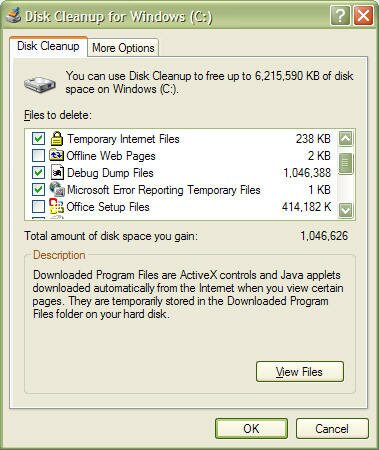
One of the most common causes of slow disk performance is the presence of lots of small files, which are often unused. Major culprits include the IE browser cache and Windows temporary file directories. Use the XP Disk Cleanup tool (Accessories menu, System Tools) often:


The Disk Cleanup utility can take a while to run on laptops when you execute it for the first time, so be prepared to sit around for a while, or maybe a read a good book. However subsequent cleanups will run much quicker if you perform this task regularly.

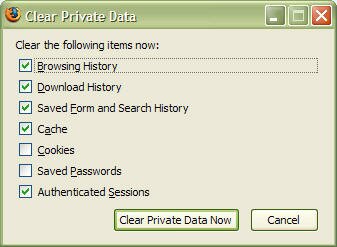
The Disk Cleanup utility will empty your Internet Exploder cache, but if you use the Firefox browser, you'll have to empty its cache manually. On the Tools menu, select Options then select the Privacy tab. In the Private Data group, click Clear Now... then click Clear Private Data Now. Make sure that you don't clear passwords unless you really want to do that:


Removing unused or unwanted files before executing a defragmentation can free up space that will be better occupied after a defrag, this is because files will load faster if they are located closer to the start of the drive.
 

(c)2010 IT TWEAKS.Created by Nashim|WebsiteLeadtrance