Showing posts with label XP. Show all posts
Showing posts with label XP. Show all posts
Wednesday


Tuesday
Keep Dial Up Connection after Logging off
You may have noticed that you loose your dial-up connection, after you log off your computer...
simply add this string to your registry, and your computer will keep your connection after you log off, and switch user until you disconnect it
Standard Warning: You really should back up your system before making any changes to your registry
1. Open Registry Editor
2. Go to HKEY_LOCAL_MACHINE\Software\Microsoft\Windows
NT\CurrentVersion\Winlogon.
3. Click Add String Value within the Edit menu.
4. Type KeepRasConnections in the dialog box, and select REG_SZ as the
Data Type.
5. Click OK.
6. In the next dialog box, type 1 and click OK.
7. Close the Registry Editor.
simply add this string to your registry, and your computer will keep your connection after you log off, and switch user until you disconnect it
Standard Warning: You really should back up your system before making any changes to your registry
1. Open Registry Editor
2. Go to HKEY_LOCAL_MACHINE\Software\Microsoft\Windows
NT\CurrentVersion\Winlogon.
3. Click Add String Value within the Edit menu.
4. Type KeepRasConnections in the dialog box, and select REG_SZ as the
Data Type.
5. Click OK.
6. In the next dialog box, type 1 and click OK.
7. Close the Registry Editor.
Can't connect to computers in your network?
This may not solve everyone's problem with networking, but this is one way to fix a problem if you can't connect to users' computer.
1. Click start button
2. Click "My Network Places"
3. Right-click and click on "Properties"
4. Right-click on "Local Area Connection" and click on "Properties"
5. click on the "Authentication" tab
6. Uncheck "Enable network access control using IEEE 802.1X"
7. Click "OK"
Hopefully that should fix the problem. If it didn't then you have a different problem. Enjoy!
1. Click start button
2. Click "My Network Places"
3. Right-click and click on "Properties"
4. Right-click on "Local Area Connection" and click on "Properties"
5. click on the "Authentication" tab
6. Uncheck "Enable network access control using IEEE 802.1X"
7. Click "OK"
Hopefully that should fix the problem. If it didn't then you have a different problem. Enjoy!
Wednesday
Turn off themes and visual effects.
As ridiculous as that sounds, if you want a very responsive user interface because you are more interested in getting work done than looking at XP's Fisher-Price graphics, then turning off themes and visual effects has got to be the best idea since sliced cheese spread. You might not like what you see, but it will be faster.
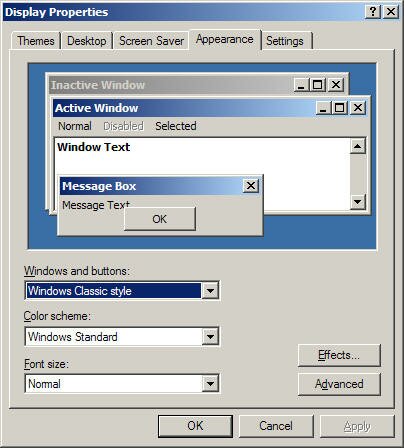
You can disable all of XPs visual effects by right-clicking the Desktop and selecting the "Properties" menu item, select the "Appearance" tab. In the dropdown box under "Windows and buttons", choose Windows Classic style.
Processor Scheduling
his tweak is impossible to explain without getting into the technical ins and outs of binary values, bit pairs and bit masks. Suffice it to say, it forces short, variable length processor timeslices to be allocated to foreground processes three times more often than those timeslices given to background processes.
Start regedit and navigate to the following key:
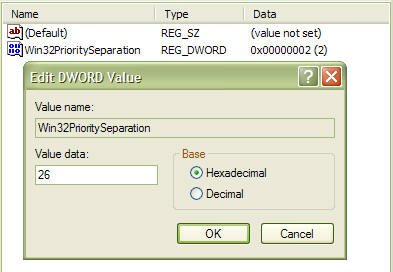
[HKEY_LOCAL_MACHINE\SYSTEM\CurrentControlSet\Control\PriorityControl]
Change the value of Win32PrioritySeparation to 26 hexadecimal, which is 38 decimal, save the changes and reboot.
As with the cache tuning tweak (#4), this particular tweak should not be applied to a system that is running either SQL Server or Internet Information Server (IIS) unless you are certain that you want to slow down those background processes.
Disable Last Access Timestamp
Whenever XP reads a file, it stamps the file with the date and time that you accessed it. This feature has its place but is not required for normal use unless you rely on the date of last access for backup purposes, which is a rare requirement for most backups. Putting a timestamp on a file that has just been read means that a write access has to be made to disk, so every time a read is executed, a corresponding write is also executed.
To disable the last access timestamp behaviour, start a command prompt, enter the following command then reboot;
FSUTIL behavior set disablelastaccess 1
Those of us who read and write Her Majesty's English need to take note of the American spelling of the BEHAVIOR parameter. To turn timestamps back on, repeat the command but replace 1 with 0;
FSUTIL behavior set disablelastaccess 0
Monday
Use Theme on XP
Reduce the overhead associated with WinXP's new Themes. This is valid for Windows XP Home and Pro. I have observed between 4 MB to 12 MB of RAM used for the new themes.
With the default Category Control Panel:
Head to Start
Select Control Panel
Select Performance and Maintenance
Select System
Select Advanced Tab
Under Performance, select the Settings button
Select Visual Effects Tab
Select "Adjust for best performance."
Select the Ok button
With the Classic Control Panel:
Head to Start
Select Control Panel
Select System
Select Advanced Tab
Under Performance, select the Settings button
Select Visual Effects Tab
Select "Adjust for best performance."
Select the Ok button
With the default Category Control Panel:
Head to Start
Select Control Panel
Select Performance and Maintenance
Select System
Select Advanced Tab
Under Performance, select the Settings button
Select Visual Effects Tab
Select "Adjust for best performance."
Select the Ok button
With the Classic Control Panel:
Head to Start
Select Control Panel
Select System
Select Advanced Tab
Under Performance, select the Settings button
Select Visual Effects Tab
Select "Adjust for best performance."
Select the Ok button
Tuesday
Lock Your Computer on Mouse Click!
Instead of pressing CTRL+ALT+DEL or windows + L to lock your machine you can create an icon to lock your machine. There are very simple steps by using it you can simply lock your computer using single mouse click.
- Right click an empty spot on desktop
- Select New and click Shortcut.
- In the Create Shortcut dialog box, type the following in the 'Type the location' of the item text box:
rundll32 user32.dll,LockWorkStation
- Click Next.
- In "Type a name for this shortcut", type (any name as u wish) and Click Finish.
- This will Create a shortcut on your Desktop.
- Now each time when you want to lock the computer , Just click on this shortcut.


