Use this Tweaks...
[Start] [Run] [Regedit]
Registry Key: HKEY_LOCAL_MACHINE\SOFTWARE\Microsoft\Windows NT\CurrentVersion\Winlogon
Modify/Create the Value Data Type(s) and Value Name(s) as detailed below.
Data Type: REG_DWORD [Dword Value] // Value Name: PasswordExpiryWarning
Setting for Value Data: [Enter Number of Days Before Expiration to Begin Warnings]
Exit Registry and Reboot
Showing posts with label performance. Show all posts
Showing posts with label performance. Show all posts
Sunday


Saturday
Create Password Reset Disks
Domain Password Reset Disk
[Start] [Control Panel] [User Accounts]
Select the account name.
Click [Prevent A Forgotten Password] under Related Tasks on left of screen.
Follow the instructions in Forgotten Password Wizard.
Limited Account Password Reset Disk
Press CTRL+ALT+DELETE to open the Windows Security dialog box.
Click Change Password.
Click Backup to open the Forgotten Password Wizard.
Click Next and then follow the instructions as they appear on the screen.
Click Change Password.
Click Backup to open the Forgotten Password Wizard.
Click Next and then follow the instructions as they appear on the screen.
Non-Domain Password Reset Disks
Administrator Password Reset Disk
Select the account name.
Click [Prevent A Forgotten Password] under Related Tasks on left of screen.
Follow the instructions in Forgotten Password Wizard.
[Start] [Control Panel] [User Accounts]
Click [Prevent A Forgotten Password] under Realted Tasks on left of screen.
Follow the instructions in Forgotten Password Wizard.
Click [Prevent A Forgotten Password] under Realted Tasks on left of screen.
Follow the instructions in Forgotten Password Wizard.
Wednesday
Active Partition
The computer does not start after you change the active partition by using the Disk Management tool
IMPORTANT Before performing the steps listed below, make sure that you have a good backup of your critical data files.
IMPORTANT Before performing the steps listed below, make sure that you have a good backup of your critical data files.
- To resolve this behavior, use one of the following procedures:
- Try changing the active partition by booting to a floppy disk and then using disk utilities to manually change the active partition:
- Boot to a command prompt by using a Microsoft Windows 95, Microsoft Windows 98, or Microsoft Windows Millennium Edition (Me) boot floppy disk.
- At the command prompt, type fdisk, and then press ENTER.
- When you are prompted to enable large disk support, click Yes.
- Click Set active partition, press the number of the partition that you want to make active, and then press ENTER.
- Press ESC.
Tuesday
Set Accessibility features for people who are blind or who have low vision in Windows XP
The Start menu Accessibility programs
The Start menu contains visual enhancement utilities that you can select.
To use the Accessibility program, follow these steps:
Click Start, point to All Programs, point to Accessories, and then click Accessibility.
Select one of the following features:
Magnifier
With this feature, you can enlarge the screen display.
Narrator
This feature provides audio assistance about the items that are displayed on the screen.
Get more detail from here.....
The Start menu contains visual enhancement utilities that you can select.
To use the Accessibility program, follow these steps:
Click Start, point to All Programs, point to Accessories, and then click Accessibility.
Select one of the following features:
Magnifier
With this feature, you can enlarge the screen display.
Narrator
This feature provides audio assistance about the items that are displayed on the screen.
Get more detail from here.....
Enable/Disable Low Disk Space Message
By default, on a Windows XP system the following messages are displayed. This tweak will prevent the messages being displayed.
[Start] [Run] [Regedit]
Registry Key: HKEY_CURRENT_USER\Software\Microsoft\Windows\CurrentVersion\Policies\Explorer
Data Type: REG_DWORD [Dword Value] // Value Name: NoLowDiskSpaceChecks
Modify/Create the Value Name [NoLowDiskSpaceChecks] according to the Value Data listed above.
Value Data: [0 = NoLowDiskSpaceChecks Disabled / 1 = NoLowDiskSpaceChecks Enabled]
Exit Registry and Reboot
[Start] [Run] [Regedit]
Registry Key: HKEY_CURRENT_USER\Software\Microsoft\Windows\CurrentVersion\Policies\Explorer
Data Type: REG_DWORD [Dword Value] // Value Name: NoLowDiskSpaceChecks
Modify/Create the Value Name [NoLowDiskSpaceChecks] according to the Value Data listed above.
Value Data: [0 = NoLowDiskSpaceChecks Disabled / 1 = NoLowDiskSpaceChecks Enabled]
Exit Registry and Reboot
Wednesday
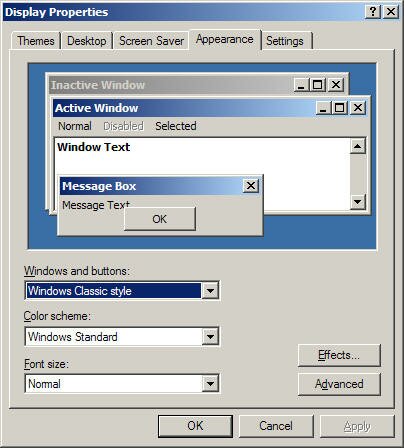
Turn off themes and visual effects.
As ridiculous as that sounds, if you want a very responsive user interface because you are more interested in getting work done than looking at XP's Fisher-Price graphics, then turning off themes and visual effects has got to be the best idea since sliced cheese spread. You might not like what you see, but it will be faster.
You can disable all of XPs visual effects by right-clicking the Desktop and selecting the "Properties" menu item, select the "Appearance" tab. In the dropdown box under "Windows and buttons", choose Windows Classic style.
Processor Scheduling
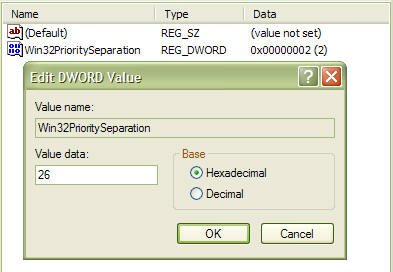
his tweak is impossible to explain without getting into the technical ins and outs of binary values, bit pairs and bit masks. Suffice it to say, it forces short, variable length processor timeslices to be allocated to foreground processes three times more often than those timeslices given to background processes.
Start regedit and navigate to the following key:
[HKEY_LOCAL_MACHINE\SYSTEM\CurrentControlSet\Control\PriorityControl]
Change the value of Win32PrioritySeparation to 26 hexadecimal, which is 38 decimal, save the changes and reboot.
As with the cache tuning tweak (#4), this particular tweak should not be applied to a system that is running either SQL Server or Internet Information Server (IIS) unless you are certain that you want to slow down those background processes.
Disable Last Access Timestamp
Whenever XP reads a file, it stamps the file with the date and time that you accessed it. This feature has its place but is not required for normal use unless you rely on the date of last access for backup purposes, which is a rare requirement for most backups. Putting a timestamp on a file that has just been read means that a write access has to be made to disk, so every time a read is executed, a corresponding write is also executed.
To disable the last access timestamp behaviour, start a command prompt, enter the following command then reboot;
FSUTIL behavior set disablelastaccess 1
Those of us who read and write Her Majesty's English need to take note of the American spelling of the BEHAVIOR parameter. To turn timestamps back on, repeat the command but replace 1 with 0;
FSUTIL behavior set disablelastaccess 0


