[Start] [Run] [Regedit]
Registry Key: HKEY_LOCAL_MACHINE\SOFTWARE\Microsoft\Windows NT\CurrentVersion\Winlogon
Modify/Create the Value Data Type(s) and Value Name(s) as detailed below.
Data Type: String Value // Value Name: DefaultUserName
Setting for Value Data: [Enter the account name to be automatically logged on]
Data Type: String Value // Value Name: DefaultPassword
Setting for Value Data: [Enter the account password]
Data Type: String Value // Value Name: AutoAdminLogon
Setting for Value Data: [0 = Disabled / 1 = Enabled]
Exit Registry and Reboot
Showing posts with label help. Show all posts
Showing posts with label help. Show all posts
Wednesday


Saturday
Create Password Reset Disks
Domain Password Reset Disk
[Start] [Control Panel] [User Accounts]
Select the account name.
Click [Prevent A Forgotten Password] under Related Tasks on left of screen.
Follow the instructions in Forgotten Password Wizard.
Limited Account Password Reset Disk
Press CTRL+ALT+DELETE to open the Windows Security dialog box.
Click Change Password.
Click Backup to open the Forgotten Password Wizard.
Click Next and then follow the instructions as they appear on the screen.
Click Change Password.
Click Backup to open the Forgotten Password Wizard.
Click Next and then follow the instructions as they appear on the screen.
Non-Domain Password Reset Disks
Administrator Password Reset Disk
Select the account name.
Click [Prevent A Forgotten Password] under Related Tasks on left of screen.
Follow the instructions in Forgotten Password Wizard.
[Start] [Control Panel] [User Accounts]
Click [Prevent A Forgotten Password] under Realted Tasks on left of screen.
Follow the instructions in Forgotten Password Wizard.
Click [Prevent A Forgotten Password] under Realted Tasks on left of screen.
Follow the instructions in Forgotten Password Wizard.
Friday
Adjusting Visual Effects
Windows XP calls the property sheet [Performance Options] where these settings are adjusted, and to a certain degree that’s true, but the changes you can make here seem to impact the visual more than the performance. At any rate, to make the changes:
- Click [Start] [Control Panel] [Performance and Maintenance] [System] then [Advanced] tab.
- In [Performance] section, click [Settings]. The property sheet below will open.
- The settings and items are self explanatory. Select/deselect according to preference.
- The [Advanced] tab allows fine tuning of processor and memory settings.
Thursday
Enable/Disable Active Window Tracking to Mouse Movements
When the mouse is moved over an open window it automatically sets the focus to that particular window. It does not bring the window to the foreground of the open windows.
[Start] [Run] [Regedit]
Registry Key: HKEY_CURRENT_USER\Control Panel\Mouse
Modify/Create the Value Data Type(s) and Value Name(s) as detailed below.
Data Type: REG_DWORD [Dword Value] // Value Name: ActiveWindowTracking
Setting for Value Data: [0 = ActiveWindowTracking Disabled / 1 = ActiveWindowTracking Enabled]
Exit Registry and Reboot
[Start] [Run] [Regedit]
Registry Key: HKEY_CURRENT_USER\Control Panel\Mouse
Modify/Create the Value Data Type(s) and Value Name(s) as detailed below.
Data Type: REG_DWORD [Dword Value] // Value Name: ActiveWindowTracking
Setting for Value Data: [0 = ActiveWindowTracking Disabled / 1 = ActiveWindowTracking Enabled]
Exit Registry and Reboot
Wednesday
Processor Scheduling
his tweak is impossible to explain without getting into the technical ins and outs of binary values, bit pairs and bit masks. Suffice it to say, it forces short, variable length processor timeslices to be allocated to foreground processes three times more often than those timeslices given to background processes.
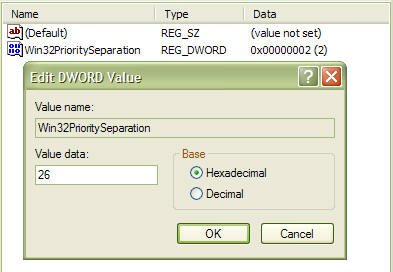
Start regedit and navigate to the following key:
[HKEY_LOCAL_MACHINE\SYSTEM\CurrentControlSet\Control\PriorityControl]
Change the value of Win32PrioritySeparation to 26 hexadecimal, which is 38 decimal, save the changes and reboot.
As with the cache tuning tweak (#4), this particular tweak should not be applied to a system that is running either SQL Server or Internet Information Server (IIS) unless you are certain that you want to slow down those background processes.
Disable Last Access Timestamp
Whenever XP reads a file, it stamps the file with the date and time that you accessed it. This feature has its place but is not required for normal use unless you rely on the date of last access for backup purposes, which is a rare requirement for most backups. Putting a timestamp on a file that has just been read means that a write access has to be made to disk, so every time a read is executed, a corresponding write is also executed.
To disable the last access timestamp behaviour, start a command prompt, enter the following command then reboot;
FSUTIL behavior set disablelastaccess 1
Those of us who read and write Her Majesty's English need to take note of the American spelling of the BEHAVIOR parameter. To turn timestamps back on, repeat the command but replace 1 with 0;
FSUTIL behavior set disablelastaccess 0


