Pages

Wednesday

Processor Scheduling

his tweak is impossible to explain without getting into the technical ins and outs of binary values, bit pairs and bit masks. Suffice it to say, it forces short, variable length processor timeslices to be allocated to foreground processes three times more often than those timeslices given to background processes.

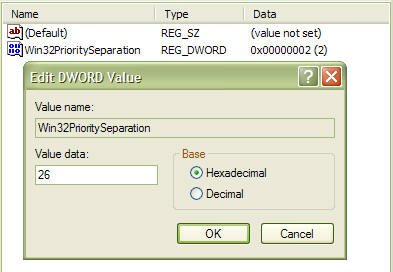
Start regedit and navigate to the following key:

[HKEY_LOCAL_MACHINE\SYSTEM\CurrentControlSet\Control\PriorityControl]

Change the value of Win32PrioritySeparation to 26 hexadecimal, which is 38 decimal, save the changes and reboot.

As with the cache tuning tweak (#4), this particular tweak should not be applied to a system that is running either SQL Server or Internet Information Server (IIS) unless you are certain that you want to slow down those background processes.

Disable Last Access Timestamp

Whenever XP reads a file, it stamps the file with the date and time that you accessed it. This feature has its place but is not required for normal use unless you rely on the date of last access for backup purposes, which is a rare requirement for most backups. Putting a timestamp on a file that has just been read means that a write access has to be made to disk, so every time a read is executed, a corresponding write is also executed.

To disable the last access timestamp behaviour, start a command prompt, enter the following command then reboot;

FSUTIL behavior set disablelastaccess 1

Those of us who read and write Her Majesty's English need to take note of the American spelling of the BEHAVIOR parameter. To turn timestamps back on, repeat the command but replace 1 with 0;

FSUTIL behavior set disablelastaccess 0

Tuesday

Fix Broken and Slow Tab Issues in Internet Explorer 8

Some users that upgraded to Internet Explorer 8 experience issues with tabs not working properly or taking a very long time to load. It seems for most users the issue can be attributed to a problem with actxprxy.dll not installing properly during the upgrade. If you have a similar problem with IE8, fixing the issue is as simple as a running one command.

Just open up an administrative level command prompt and type in regsvr32 actxprxy.dll and hit Enter. Reboot your computer and your tab issue should be resolved.

Speed up web browsing with OpenDNS

When you type in a domain name such as wingeek.com in your browser the computer must resolve the friendly name into an IP address of the server to download the web page and supporting files. Windows uses a DNS (domain name system) server to lookup this information. By default, Windows uses your ISP’s DNS server. Depending on your provider, the performance of their DNS resolving server varies. Some large national providers are known to provide unreliable and slow DNS servers.

The performance of the DNS server you are using is one component that affects the speed of your internet browsing. Since each domain name you type in must be resolved into an IP address, the amount of time that takes will delay the loading of any web page. Some users with overloaded ISP DNS servers can see delays in multiple seconds before web pages start to load.

OpenDNS provides free alternative DNS servers that anyone can use with any internet provider. Unlike many national internet providers, OpenDNS’s DNS servers are very fast and reliable. Using OpenDNS servers instead of your ISP servers will help you speed up your internet browsing by cutting down on the delay between resolving a domain name and getting the IP address so your browser can start loading the web page.

Configuring your computer to use OpenDNS servers instead of your ISP’s is a simple change that works in both Windows XP and Windows Vista:

Click on the Start Button and type in ncpa.cpl and hit Enter. In Windows XP Click on the Start Button, click Run and then type in ncpa.cpl
Right click on your active network connection that you use to connect to the Internet and select Properties.
On the Networking / General tab, select Internet Protocol (TCP/IP) (version 4 on Windows Vista & 7) and hit Properties.
On the properties screen, select Use the following DNS server addresses and then type in 208.67.222.222 in the preferred and 208.67.220.220 in the alternate boxes.
Hit OK twice and you are finished.
Share Your Screen with SharedView

Microsoft SharedView is a free utility that allows you to share your desktop, applications and documents with up to 15 people online at a time. It is perfect to hold a small meeting or to show a family member how to do something. Best of all it works well through firewalls and routers so you don’t have to worry about connection issues.

Getting Microsoft SharedView up and running requires a Microsoft Live ID, broadband connection and a short download.

Click here to download SharedView

Once downloaded and installed just start up the utility from the start menu and sign in. Then click Start a new session and send your participants the link and details provided. Finally,click the Start button to start your meeting/event.

After the meeting has started you need to share something for your participants to view. Click the Share button on the top of the screen and select the app you want to share. You can also select your entire desktop on the bottom of the list.

Once selected click the Start button to begin sharing.

Saturday

Remote Assistance and Remote Desktop Sharing

Remove Remote Assistance and Remote Desktop Sharing.

Take note: Remote Desktop Sharing is not available with Windows XP Home. You may request assistance from someone only using Windows XP Pro.

Where do you find it?

With the default Category Control Panel:

Head to
Start
Select
Control Panel
Select
Performance and Maintenance
Select
System
Select
Remote Tab
Uncheck both "
Remote Assistance and Desktop Sharing" options
Select the
Ok button to apply the settings

With the
Classic Control Panel:

Head to
Start
Select
Control Panel
Select
System
Select
Remote Tab
Uncheck both "
Remote Assistance and Desktop Sharing" options
Select the
Ok button to apply the settings

Search history and settings: Enabling cookies

Google Chrome

To adjust cookies and other settings in Google Chrome, please review the information in the Google Chrome Help Center.

Firefox 2 or 3

Click the Tools menu.
Select Options.
Click the Privacy tab.
Select the 'Accept cookies from sites' checkbox.
Click the OK button.

Internet Explorer 6 or 7

Click the Tools menu.
Select Internet Options.
Click the Privacy tab.
Click the Default button (or manually slide the bar down to 'Medium').
Click the OK button.

Safari 3

Click the Safari menu.
Select Preferences.
Click Security.
In the 'Accept Cookies' section, select Always.
Click OK.

Friday

Nokia Codes Tips and Tricks

To check the IMEI (International Mobile Equipment Identity) Type-
*#06#
Information you get from the IMEI-
XXXXXX XX XXXXXX X
TAC FAC SNR SP

TAC = Type approval code
FAC = Final assembly code
SNR = Serial number
SP = Spare

To check the phones Software revision type-
*#0000#
Information you get from the Software revision-
V 05.31
18-02-99
NSE-3
1ST Line = Software revision
2ND Line = The date of the software release
3RD Line = Phone type

To enter the service menu type-
*#92702689# (*#WAR0ANTY#)
Serial number (IMEI)
Production date (MM/YY)
Purchase date (MM/YY) You can only enter the date once.
Date of last repair (0000=No repair)
Transfer user data to another Nokia phone via Infra-Red

Clock Stopping

To check weather your SIM Card supports clock stopping type-
*#746025625# (*#SIM0CLOCK#)

Revealing the Headphone and Car-Kit menus

Please note that if you do these next tricks, the new menus can't be erased without retoring the factory default settings. To do these tricks you need to short-circuit the pins on the bottom of the phone next to where you plug in you charger.

1. To activate the "Headset" menu, you need to short-circuit pins "3" and "4". After a short time the word "Headset" will be shown in the display. Menu 3-6 is now enabled.
2. To activate the "Car" menu, you need to short-circuit pins "4" and "5". After a short time the word "Car" will be shown in the display. Menu 3-7 is now enabled.

THE REBOOT TRICK
This should work on all software versions of the 6110.
1. Go to the Calendar (Menu-8)
2. Make a note or reminder.
3. Enter some text into the edit box.
4. Hold "Clear" until the whole text is cleared, then press "Back".
5. Press "0". The main screen will now be showing but a space appears on the screen. (you can't see it)
6. Enter 4 digits (e.g. 1234).
7. Use the down arrow to move the cursor to the left side of the numbers and the space (Down arrow twice).
8. Now enter 6 digits and press the call button.

Wait for a few seconds, the screen should start to flash and reboots. It should alsowork on other menus like the "Profiles" menu.

EFR CALL QUALITY
To activate EFR (Enhanced Full Rate) Enter the code-
*3370#
This improves call quality but decreases batterylife by about 5%
To deactivate it, Enter the code-
#3370#

THE JAMES BOND TRICK
If you short-circuit theleft middle and right pins on the bottom of the phone with all connections touching each other, the Nokia software hangs! The profile "Headset" will be activated. Before you do this just activate the "Automatic Answer" in the headset profile and set the ringing volume to "Mute". Now you can use your phone for checking out what people are talking about in a room. Just place it under a table in a room and call it. The phone receives the call without ringing and you can listen to what people are saying.

NETWORK MONITOR

There is a hidden menu inside your Nokia phone. If you want to activate it, you'll have to re-program some chips inside of your phone.
Check your software version. You can only continue if you have v4.33, v4.73 or v5.24.
Take apart the phone.
De-solder the EEPROM (ATMEL AT 24C64).
Read out the data with an EEPROM programmer and save it to a file (Backup).
If you have v.33 or v4.73, change the address "03B8" from "00" to "FF".
If you have v5.24 then change the address "0378" from "00" to "FF".
Write the new data to the EEPROM and solder it back to the phone,
Power on your phone and you should have "Netmonitor" enabled.
The Network Monitor gives you the following information.

Carrier number
MS RX Level in DBM
Received signal quality
MS TX power level
C1 (Path loss criterion, used for cell selection and reselection). The range is -99 to 99.
RTL (Radio link timeout).
Timeslot
Indication of the transmitter status
Information on the Network parameters.
TMSI (Temporary Mobile Subscriber Identity).
Cell identification (Cell ID, Number of cells being used).
MCC (Mobile country code)
MCN (Mobile network code)
LAC (Location area code)
Ciphering (On/Off)
Hopping (On/Off)
DTX (On/Off)
Discard cell barred information

CHECK SIM-LOCK
Note - If you bought your Nokia on UK Vodafone or UK Cellnet you do not need to check this because they both transmit on GSM900, and they don't lock the phones. However if you bought your phone on UK Orange or UK One2one your phone may be blocked. The reason is that they both transmitt on GSM1800. To make a call on GSM1800 you need what is known as a "Dual band" phone. A dual band phone is able to transmit on both GSM900 and GSM1800, so they lock the phones so you can't use it with any other network simcard. If you find that your phone is locked you can try different software to unlock it. (we havn't found one that works yet), or you can ask your service provider who will gladly exchange the 10 digit code for about £35.
This is how to check the status of the 4 different locks. Aslo don't try entering the wrong number, because after 3 times it will block the phone for good.

There are 4 different locks on your Nokia phone.
COUNTRY-LOCK
NETWORK-LOCK
PROVIDER-LOCK
SIMCARD-LOCK
The code to read out the sim-lock status of your phone is

#PW+(MASTERCODE)+(Y)#
# = DOUBLE-CROSS
W = PRESS "*" THREE TIMES
P = PRESS "*" FOUR TIMES
+ = PRESS "*" TWO TIMES
MASTERCODE = 1234567890
Y = NUMBER 1 TO 4
The master code is a secret code. The code has 10 digits, To read out the sim-lock status you can enter every combination you want!
"Y" Shows the status of the network-lock. Here you can enter a number from "1" to "4". The "4" is for the sim-card lock.

SIM-LOCK CHECKS
#PW+1234567890+1# = GIVES PROVIDER-LOCK STATUS
#PW+1234567890+2# = GIVES NETWORK-LOCK STATUS
#PW+1234567890+3# = GIVES COUNTRY-LOCK STATUS
#PW+1234567890+4# = GIVES SIM-CARD-LOCK STATUS.
 

(c)2010 IT TWEAKS.Created by Nashim|WebsiteLeadtrance